Battery Type/'s
-Lithium 100AH Batteries with 3.3KW Charger-Lithium 200AH Batteries with 3.3KW Charger
-Lithium 100AH Batteries with 6.6KW Charger
-Lithium 200AH Batteries with 6.6KW Charger
-Lithium 110AH Batteries with 3.3KW Charger
-Lithium 110AH Batteries with 6.6KW Charger
-Lithium 150AH Batteries with 3.3KW Charger
-Lithium 150AH Batteries with 6.6KW Charger
Reprogram the battery management system by following these steps.
This requires lithium diagnostic tool U5665A-N along with your own laptop. If you do not already have the program installed on your laptop/computer, need a refresh on what program is needed or how to connect to the vehicle see these instructions.
Plug in the vehicle at the front bumper just like as if you were charging the vehicle. This will power up the BMS even if the vehicle will not turn on.
Open Orion BMS Utility program for the version of BMS your vehicle is equipped with.

Click on connect to BMS.
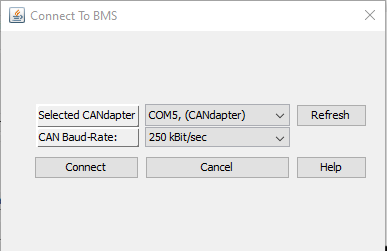
Selected CAN adapter should have COM#
CAN Baud-Rate make sure 250 kBit/sec is selected
Please note if you are programming a new BMS or the BMS was sent in for repair you will need to initially connect at 500 kBit/sec. After programming is completed, you will be automatically disconnected. If you need to reconnect you will need to change to 250 kBit/Sec.
Click on connect
Note: Vehicle needs to be power up on its own or plugged in at the front bumper. Key does not need to be on to connect.
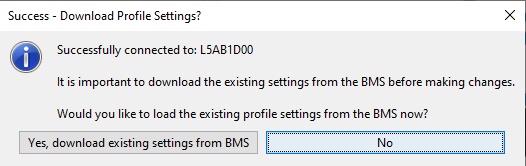
If connection was successful, you will get this window, click Yes, download existing settings from BMS.
Another way to load profile is under File then Receive Current Profile From BMS.
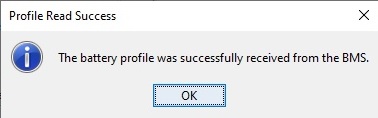
After loading profile is complete you should see this window. Click OK.
If you are replacing your old BMS or sending it in for repair, it does work best to save the old profile. To do so:
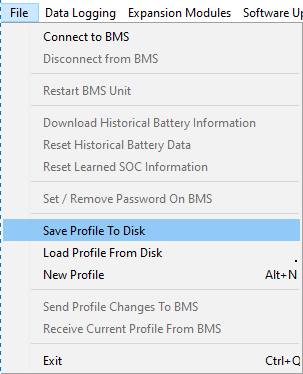
Then go to file in upper left corner and select "Save Profile To Disk"
Then a window will popup asking were to save it. Select location on computer and click save.
In the event that you do not have the parameter file saved you can contact us with your vehicle VIN# and we can provide you with the file. These parameter files can change frequently so if you have a file from another vehicle do not assume it will work in this vehicle.
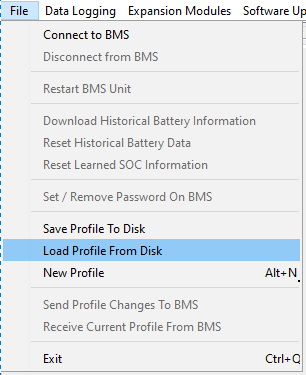
Click in file in upper left corner and select "Load Profile From Disk"
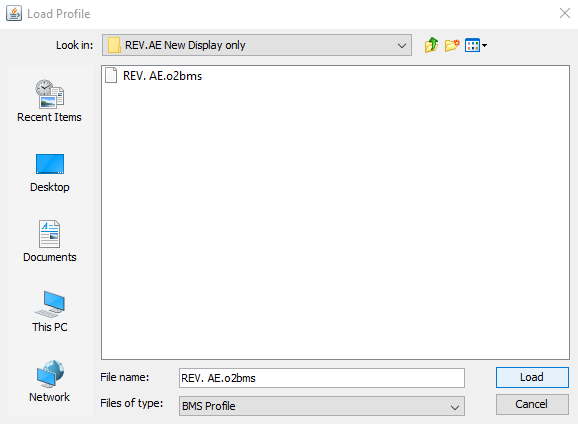
A popup window will appear for you to select the saved parameter file either you saved or one we e-mailed you. File will end with .obms or .obms2. Select file and click Load.
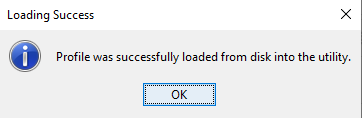
You will see this popup when file is loaded successfully. Click OK.
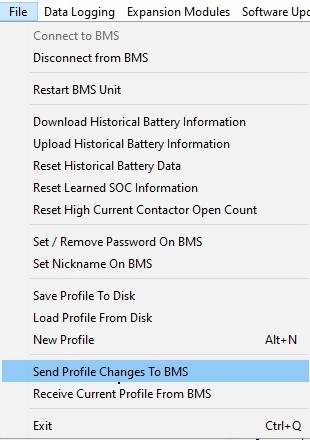
Click on file then "Send Profile Changes To BMS"
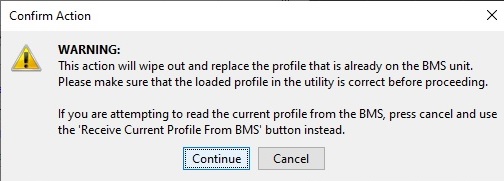
Click on "Continue"
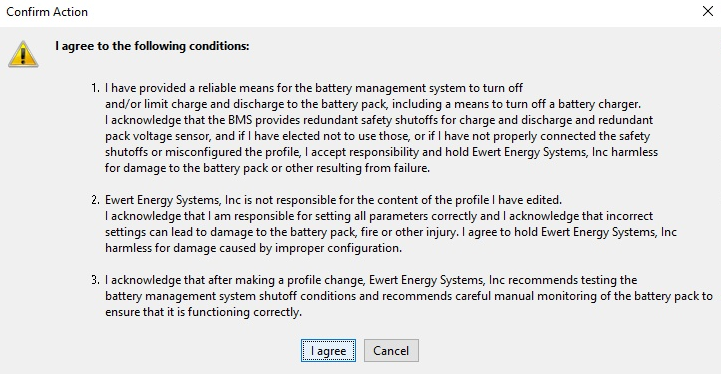
Click on "Agree"
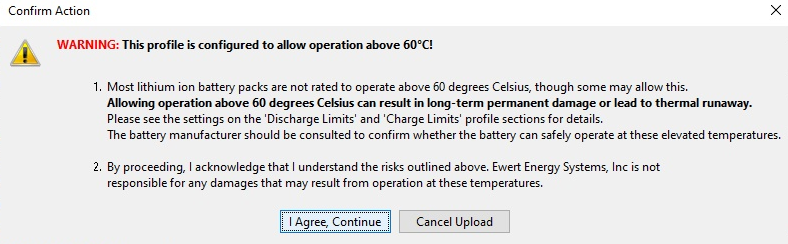
Click on "I Agree, Continue"
You will get a message that program was successful. You can now shut down program and unplug. Change is completed. Vehicle should charge and be operational if state of charge is above 5%. If for some reason it is not you can submit a ticket here and we can help with what might be going on. Example would be the file we sent you was for when vehicle was built but the battery charger was changed since then and the program had to be altered to work with the new charger. This would be an example were saving the profile from old BMS comes in handy.